MyFaceShape App Tutorials
Your Face Shape Result Explained
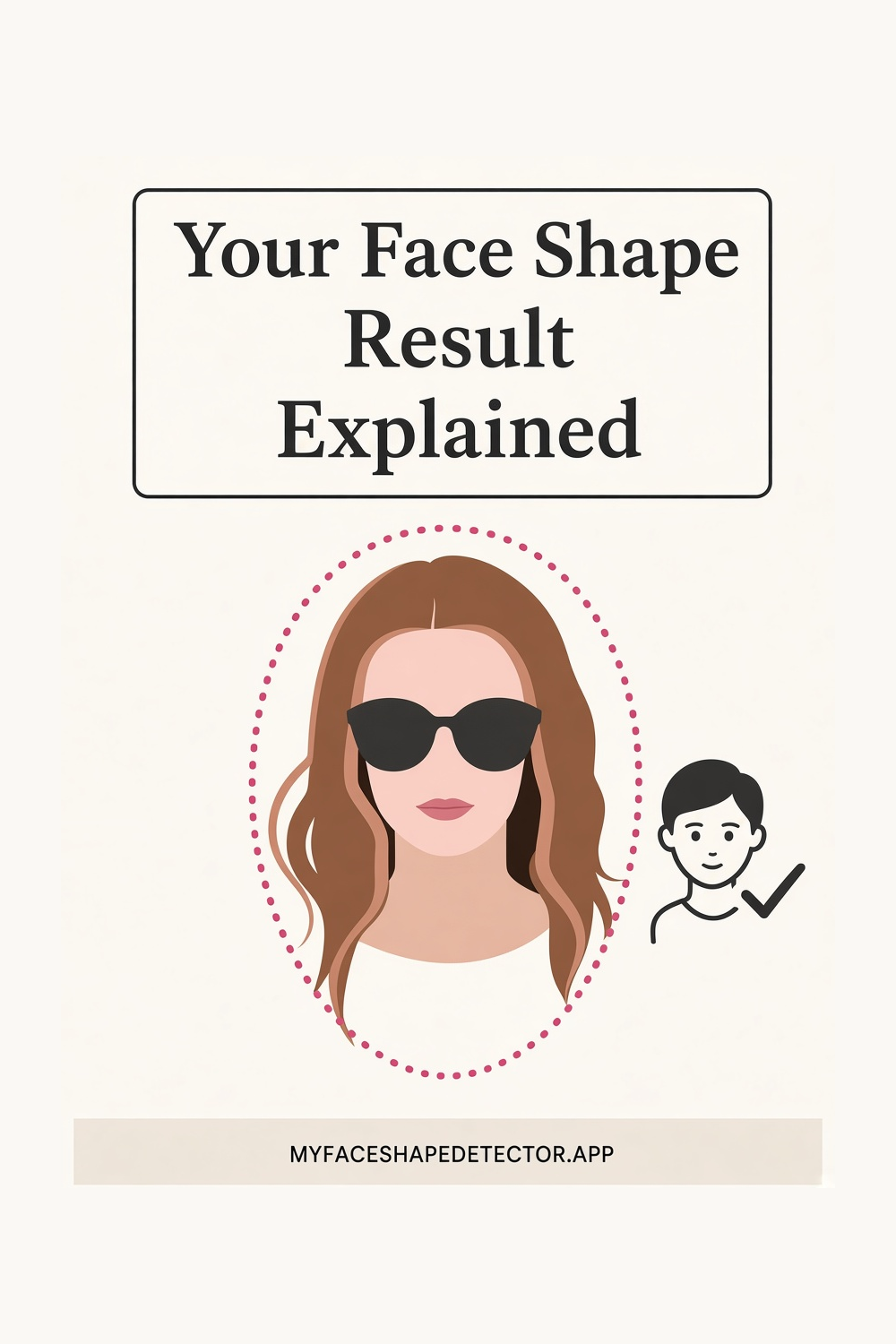
Your Face Shape Result Explained starts with the outer line of the face, not with one feature in the middle of it. The result names the closest shape and how near the outline was to that shape.
These steps are how a scan is taken in the app: photo, crop, result, and what the result is allowed to mean. The picture above is the pin for this guide. The same page is the link on the pins that belong with it.
Find Your Face Shape in Seconds
Not sure if your face is oval, round, square, heart, diamond, oblong, or triangle? Upload or take a clear front-facing selfie and MyFaceShape will analyze your facial proportions to help identify your face shape in seconds.
Simple face-shape analysis — not a beauty score or attractiveness rating.
Try MyFaceShape on iPhone or Android


How to read the outline
If you searched for “face shape result explained”, stay with the contour. Name the shape only after you can see where the face is long and where it is wide.
A second-close shape can be worth a look when the match is modest. Saving a result keeps that shape and those measurements so you can open them later.
It is a record of the scan, not a new analysis. Open two saved scans and compare the shape name and the measurement lines.
Different lighting or angle can change a close call. History is a list of past scans, each with its shape outline.
When two names both seem possible
You can revisit one without taking a new photo. The report has a shape section, a measurement section, and a symmetry section.
They answer different questions. The measurement view shows length, forehead, cheekbones, and jaw as lines on your photo.
Exploring them explains the shape label. The iPhone app uses a selfie to estimate the face shape and show it beside the seven-shape set.
No manual diagram is required. The match is the outline that best fits your forehead, cheeks, jaw, and length.
The phone holds the selfie that was measured. If two shapes seem possible, compare forehead, cheeks, and jaw, then check length.
A selfie scan applies those same tests. The checklist is length, forehead width, cheekbone width, and jaw width.
Tick them by comparison, then name the shape.
A shadow on one cheek moves where the width appears to sit. Even light keeps the outline honest. Use one still photo. A chin that drops or lifts between shots will not agree with itself about the jaw.
Take the photo straight
Use one photo, taken straight on, with the camera at eye level. Hair only needs to be clear of the hairline and the jaw. A tilt, a shadow on one cheek, or a chin that is lifted will change the outline before you have even started.
Look at the forehead, the cheeks, and the jaw as three widths. Then compare the length of the face with the width. That is the whole reading.
Common questions
How do I use “Your Face Shape Result Explained”?
The result names the closest shape and how near the outline was to that shape. Use one still photo. A chin that drops or lifts between shots will not agree with itself about the jaw.
How do I use “How to Understand Your AI Face Report”?
The report has a shape section, a measurement section, and a symmetry section. If two outlines both seem close, look again at the chin and the jaw corners. That is usually where they split.
How do I use “Your Face Shape Identification Checklist”?
The checklist is length, forehead width, cheekbone width, and jaw width. Check length against width before you compare two names. A strong jaw can still sit on a long face.
Find Your Face Shape
Take one clear, front-facing selfie and MyFaceShape helps identify whether your face is oval, round, square, heart, diamond, oblong, or triangle. Quick, simple, and focused on face shape — not beauty scores.
Try MyFaceShape on iPhone or Android